Configuratorno tools needed
Browse all sixteen planes, inspect the real Karabiner output of any key, rename the applications behind the yellow keys, and export a ready-to-import JSON file.
This is the multi-page printable view of this section. .
Before Capslock was a native app, it was a configuration for Karabiner-Elements, and it still is. Capslock Enhancement V3 is a set of Karabiner rules that turns Caps Lock into Escape on a tap and a Hyper key on a hold, with the same sixteen control planes and the same layout that the native app ships as Capslock Classic. It is free and open source under the Apache 2.0 licence, with its source at github.com/Vonng/Capslock.
| Karabiner Edition | Capslock app | |
|---|---|---|
| What you install | Karabiner-Elements, then import one rule file | The Capslock app |
| Permissions | Karabiner's driver, background services, Accessibility and Input Monitoring | Accessibility only |
| Changing a key | Edit the JSON, or use the configurator | Click the key in the editor |
| Learning the layout | These pages and the configurator | Hold-to-Reveal and the Playground |
| Price and source | Free, Apache 2.0, open source | Proprietary; see Download |
| Status | Maintained | 0.4.0 release candidate |
Use only one of them for Caps Lock at a time. The Capslock app refuses to start while a Karabiner rule uses Caps Lock; turn the rules off in Karabiner-Elements first, as described in Coexisting with Karabiner-Elements.
Tap Caps Lock: Escape. Hold it and press H J K L: the cursor moves.
Capslock Enhancement V3 current targets macOS and Karabiner-Elements. There is nothing else to install: the configuration is a set of complex-modification rules that Karabiner interprets, so nothing new runs in the background and nothing is compiled on your machine.
This guide was verified with Karabiner-Elements 16.1.0 in August 2026, whose support matrix covers macOS 13 Ventura through macOS 27 on Intel and Apple silicon. Check the official site for the current release.
Download the DMG from the official site
and run Karabiner-Elements.pkg, or install the cask:
Open Karabiner-Elements Settings and follow its prompts in System Settings. Allow the privileged and non-privileged background services, Accessibility, Input Monitoring, and the Driver Extension. Under Virtual Keyboard, select the layout matching your physical keyboard. The official installation guide explains what each permission is for.
Open the import link below. Any browser hands it straight to Karabiner-Elements:
Import Capslock Enhancement V3.1
Or paste the URL yourself:
Choose Import and allow the browser to open Karabiner-Elements.
Under Settings › Complex Modifications, enable the rules you want. The ten
rules are independent, so a family you have no use for can simply stay off;
the first one, CapsLock to Hyper, is the one every other rule depends on.
Then tap ⇪: it should send ⎋. Hold it while pressing H J K L: the cursor moves. You are on plane zero.
Two alternatives lead to the same place. The Karabiner gallery page
has an Import button of its own, and for a fully offline install you can
drop capslock.json
into ~/.config/karabiner/assets/complex_modifications/ and pick Add predefined rule. Karabiner-EventViewer shows what any key actually
emits if something looks wrong.
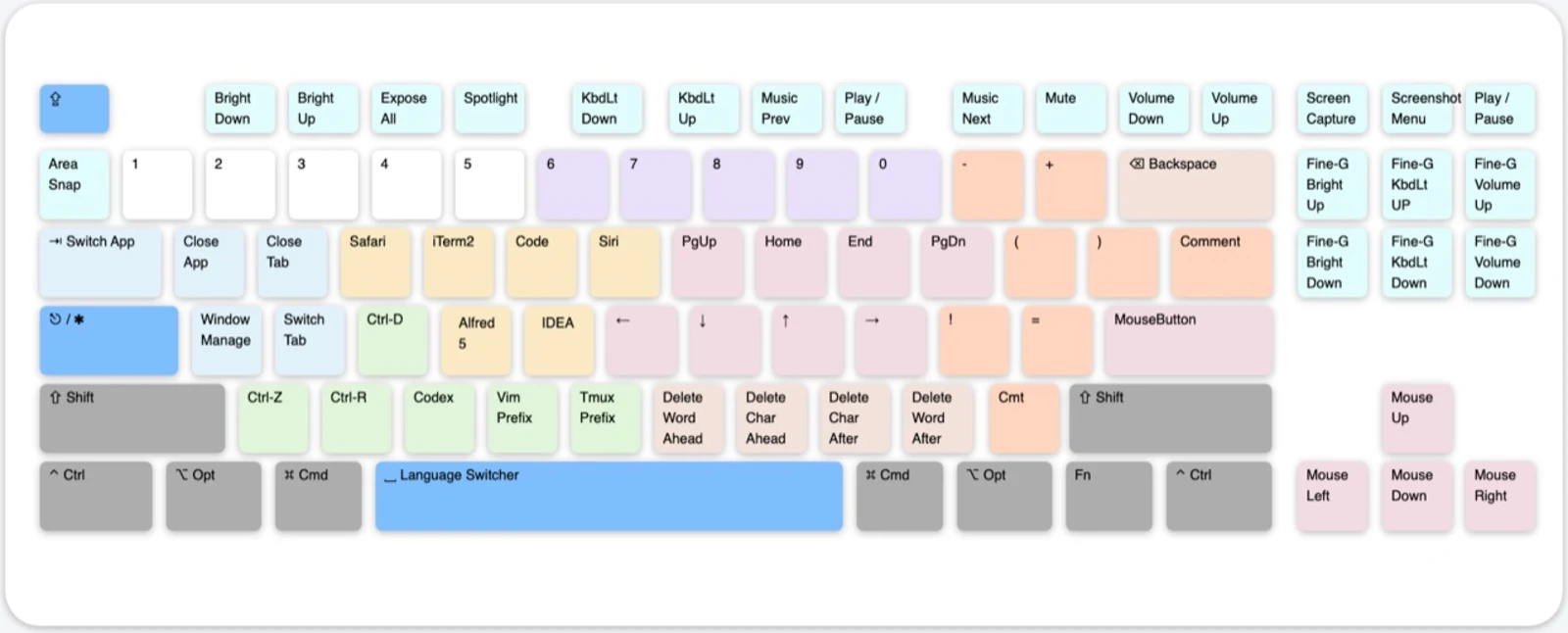
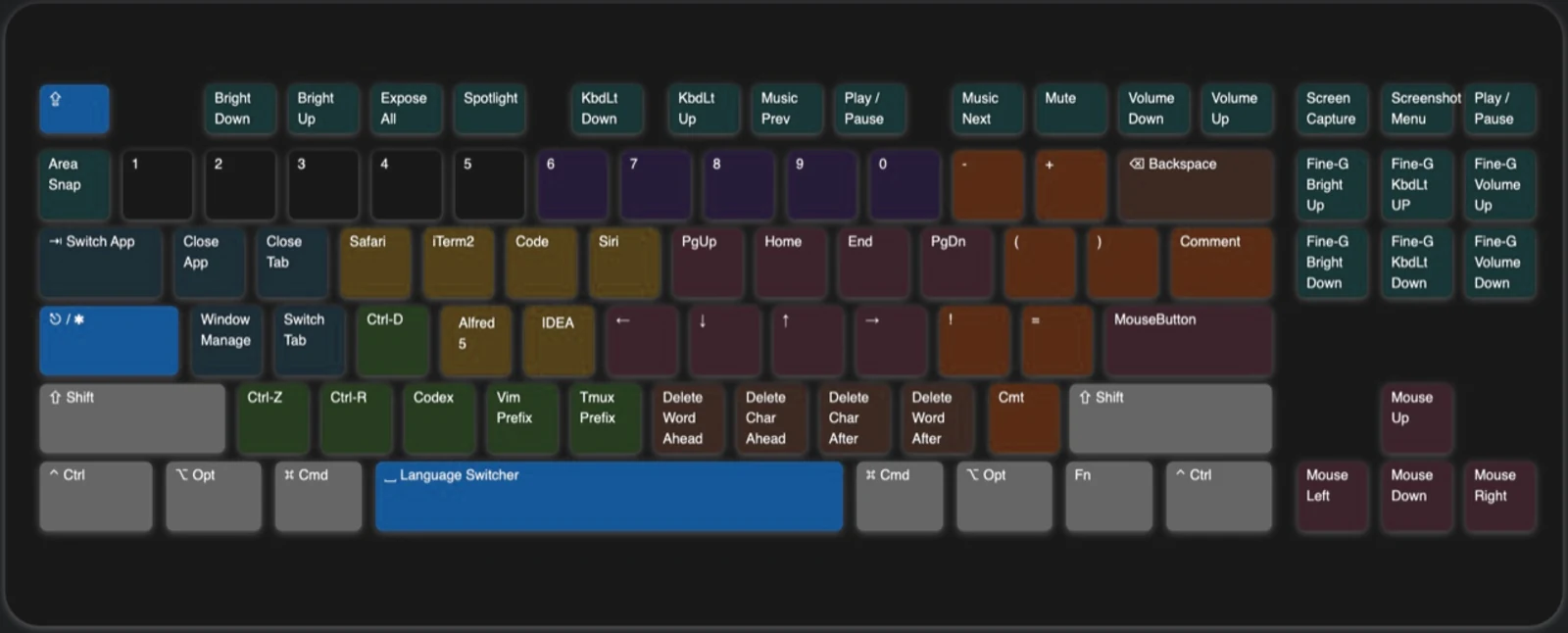
The keyboard map is colour-coded by purpose, so a key's neighbourhood tells you roughly what it does before you look anything up. The configuration ships as ten Karabiner rules, one per family, and you enable them one by one.
| Family | Colour | What it does | Mappings |
|---|---|---|---|
| Basic | Blue | Tap ⇪ for ⎋, hold it for ✱ Hyper, plus input-source switching | 4 |
| Navigation | Pink | Vim-style movement, selection, tab and window switching, pointer and wheel | 102 |
| Deletion | Brown | NM,. delete by character, word or line without moving your hand | 12 |
| MouseKey | Keypad | The numeric keypad as a complete mouse | 63 |
| Window | Azure | Close and cycle tabs, windows, apps and desktops; sleep, lock, log out | 19 |
| Application | Yellow | Launch or focus six applications across three planes | 18 |
| Terminal | Green | Terminal signals, IDE run controls, Vim and Tmux prefixes, Codex and Claude | 10 |
| Clipboard | Purple | Five extra text clipboards on 6–0 | 10 |
| Shifter | Orange | Brackets, braces and code punctuation within reach of the home row | 16 |
| Functional | Cyan | Screenshots, media, brightness, keyboard light and volume | 28 |
The configurator reads the same V3 JSON. It is the fastest way to inspect one key on any plane, or to change an application shortcut and export a configuration you can import straight away.
Caps Lock now has two behaviours that never collide, because one is decided on release and the other while the key is down.
| Gesture | Output | Purpose |
|---|---|---|
| Tap ⇪ | ⎋ Escape | Escape without leaving the home row |
| Hold ⇪ | ✱ Hyper | Enter the base control plane |
| ✱ with ⎋ | ⇪ Caps Lock | Toggle the original Caps Lock state |
| ✱ with ␣ | ⌃ with ␣ | Switch input source |
| ✱ with ⌘ with ␣ | ⌃ with ⌘ with ␣ | Emoji and symbols picker |
✱ is not a private signal. Karabiner rewrites the held Caps Lock into all four right-side modifiers at once, ⌘ with ⌥ with ⌃ with ⇧, which has two consequences worth understanding:
While Hyper stays held, the four left-side modifiers act as four binary switches. Read them as four bits and you get planes 0–15:
⌘ = 1 · ⌥ = 2 · ⌃ = 4 · ⇧ = 8.
| Plane | Left modifiers | Mappings | What lives there |
|---|---|---|---|
| 0 | ✱ | 89 | The daily layer: movement, deletion, apps, terminal, symbols |
| 1 | ✱ with ⌘ | 59 | Selection, second-choice apps, clipboard copy |
| 2 | ✱ with ⌥ | 38 | Pointer movement and third-choice apps |
| 3 | ✱ with ⌘ with ⌥ | 8 | Word and paragraph selection |
| 4 | ✱ with ⌃ | 12 | Desktop and window management |
| 5 | ✱ with ⌘ with ⌃ | — | Free |
| 6 | ✱ with ⌥ with ⌃ | — | Free |
| 7 | ✱ with ⌘ with ⌥ with ⌃ | — | Free |
| 8 | ✱ with ⇧ | 25 | App, window and tab switching |
| 9 | ✱ with ⌘ with ⇧ | 21 | Accelerated wheel |
| 10 | ✱ with ⌥ with ⇧ | 21 | Accelerated pointer |
| 11 | ✱ with ⌘ with ⌥ with ⇧ | — | Free |
| 12 | ✱ with ⌃ with ⇧ | 9 | Wheel |
| 13 | ✱ with ⌘ with ⌃ with ⇧ | — | Free |
| 14 | ✱ with ⌥ with ⌃ with ⇧ | — | Free |
| 15 | ✱ with ⌘ with ⌥ with ⌃ with ⇧ | — | Free |
Nine planes are populated; seven are free space for rules of your own. Open the configurator to browse the same sixteen rows interactively and see what each key does on the plane you select.
The planes are not arbitrary. Across the whole configuration the same modifier keeps the same meaning, which is why the layout can be learned once rather than memorized key by key:
| Modifier | Consistent meaning |
|---|---|
| ⌘ | Extend the action: select instead of move, copy instead of paste, the second application |
| ⌥ | Leave the text world: pointer, wheel, the third application |
| ⌃ | Talk to the window server: desktops, Mission Control, screen state |
| ⇧ | Switch containers: apps, windows, tabs; or accelerate a pointer action |
macOS reserves a few system-wide chords of its own. The most common clash is ⌘ with ⌥ with ⌃ with ⇧ with ., which can open a diagnostics dialog; see issue #30. Remap the system shortcut if it conflicts with a plane you use.
Continue with navigation, deletion, and mouse control.
The pink and brown areas around the home row carry the layout's most frequent operations. The navigation and deletion families together carry 114 of the 282 mappings in V3.1, so this is the part of the layout worth learning first.
Unless stated otherwise, every chord on this page assumes ✱ Hyper is held. "+ ⌘" therefore means ✱ with ⌘ plus the listed key.
H J K L move left, down, up, and right, exactly as in Vim. Directly above them, U I O P extend the same idea to whole pages and lines: Page Up, Home, End, Page Down.
Those eight keys are the only ones mapped on nine different planes. Each group of planes below covers one job, and together they account for 72 of the 282 mappings in V3.1.
The text layer follows one rule: hold ⌘ and a movement becomes a selection, because the rule emits the same arrow key with ⇧ added. Adding ⌥ on top widens the unit: a character becomes a word, a line becomes three lines, half a line becomes the whole line.
| Key | Hyper | + ⌘ | + ⌘ with ⌥ |
|---|---|---|---|
| H | Left | Select left | Select word left |
| J | Down | Select line down | Select three lines down |
| K | Up | Select line up | Select three lines up |
| L | Right | Select right | Select word right |
| U | Page Up | Select page up | Select page up |
| I | Home | Select to line start | Select the line, end to start |
| O | End | Select to line end | Select the line, start to end |
| P | Page Down | Select page down | Select page down |
That is why ✱ with ⌘ with ⌥ with I jumps to the end of the line and then selects back to its start: it is the fastest way to grab exactly one line without touching the mouse.
⇧ moves between containers, the thing you are looking at rather than the text inside it, while ⌃ talks to the window server.
| Chord | Emits | Effect |
|---|---|---|
| ✱ with ⇧ with J / ✱ with ⇧ with K | ⌘ with ⇥ / ⌘ with ⇧ with ⇥ | Next / previous application |
| ✱ with ⇧ with H / ✱ with ⇧ with L | ⌃ with ⇧ with ⇥ / ⌃ with ⇥ | Previous / next tab |
| ✱ with ⇧ with I / ✱ with ⇧ with O | ⌘ with ⇧ with ` / ⌘ with ` | Previous / next window of the same app |
| ✱ with ⇧ with U / ✱ with ⇧ with P | ⌘ with ⌥ with - / ⌘ with ⌥ with = | Zoom out / in |
| ✱ with ⌃ with H / ✱ with ⌃ with L | ⌃ with ← / ⌃ with → | Previous / next desktop |
| ✱ with ⌃ with K / ✱ with ⌃ with O | ⌃ with ↑ | Mission Control |
| ✱ with ⌃ with J | ⌃ with ↓ | Application windows of the focused app |
| ✱ with ⌃ with I | ⌘ with H | Hide the current app |
| ✱ with ⌃ with U | ⌃ with ⌘ with F | Toggle full screen |
| ✱ with ⌃ with P | ⌘ with ␣ | Spotlight |
Tab switching relies on ⌃ with ⇥, which most browsers and editors honour but a few apps do not. Window cycling uses ⌘ with `, the standard macOS "move focus to next window" shortcut; confirm it is enabled under System Settings › Keyboard › Keyboard Shortcuts….
Four more planes turn the same eight keys into a mouse, without your hands moving at all. ⇧ is the accelerator in both modes.
| Key | + ⌥ Pointer | + ⌥ with ⇧ Pointer, fast | + ⌃ with ⇧ Wheel | + ⌘ with ⇧ Wheel, fast |
|---|---|---|---|---|
| H | Pointer left | Pointer left | Wheel left | Wheel left |
| J | Pointer down | Pointer down | Wheel down | Wheel down |
| K | Pointer up | Pointer up | Wheel up | Wheel up |
| L | Pointer right | Pointer right | Wheel right | Wheel right |
| U | Left button | Left button | Wheel right | Wheel right |
| I | Right button | Right button | Wheel up | Wheel up |
| O | Back button | Back button | Wheel down | Wheel down |
| P | Forward button | Forward button | Wheel left | Wheel left |
| Plane | Pointer speed | Wheel speed |
|---|---|---|
| ⌥ / ⌃ with ⇧ | 1600 | 64 |
| ⌥ with ⇧ / ⌘ with ⇧ | 3200 | 128 |
The middle mouse button is the one exception: it lives on ✱ with ⌥ with ↩ rather than on a navigator key.
The physical arrow keys drive the pointer too, which is often quicker than reaching for the home-row layer. Here ⌥ slows down and ⌘ speeds up, in both pointer and wheel modes.
| Chord | Result | Speed |
|---|---|---|
| ✱ + arrows | Move the pointer | 1600 |
| ✱ with ⌥ + arrows | Move slowly | 800 |
| ✱ with ⌘ + arrows | Move quickly | 4200 |
| ✱ with ⇧ + arrows | Scroll the wheel | 64 |
| ✱ with ⇧ with ⌥ + arrows | Scroll slowly | 32 |
| ✱ with ⇧ with ⌘ + arrows | Scroll quickly | 256 |
In V3.1 the fast wheel reverses the vertical direction: ✱ with ⇧ with ⌘ with ↑ scrolls the same way as ✱ with ⇧ with ↓, and ✱ with ⇧ with ⌘ with ↓ the same way as ✱ with ⇧ with ↑. The horizontal arrows keep their direction.
All five mouse buttons sit on ↩:
| Chord | Button |
|---|---|
| ✱ with ↩ | Left click |
| ✱ with ⌘ with ↩ | Right click |
| ✱ with ⌥ with ↩ | Middle click |
| ✱ with ⇧ with ↩ | Back |
| ✱ with ⌃ with ↩ | Forward |
N M , . sit directly below the navigation keys. The pair on the left deletes backwards, the pair on the right deletes forwards, and the unit grows as you add modifiers.
| Key | Hyper | + ⌘ | + ⌥ |
|---|---|---|---|
| N | Delete the previous word | Delete back to the line start | Delete back to the line start |
| M | Delete the previous character | Delete the previous word | Move the line down |
| , | Delete the next character | Delete the next word | Move the line up |
| . | Delete the next word | Delete forward to the line end | Delete back to the line start |
Two rows break the pattern deliberately. ✱ with ⌥ with N and ✱ with ⌥ with . both send ⌘ with ⌫, clearing everything from the cursor back to the start of the line, so the outer keys of the block are the "throw this line away" pair. And ✱ with ⌥ with M / ✱ with ⌥ with , do not delete at all: they emit ⌥ with ⇧ with ↓ and ⌥ with ⇧ with ↑, the move-line-down/up shortcut that IntelliJ, VS Code and most editors share.
If your keyboard has a keypad, Hyper turns the whole block into a mouse. The digits give eight directions around a neutral 5; the top row scrolls; the bottom and right edges are the five buttons.
| Keypad keys | Mapping |
|---|---|
| 7 8 9 4 6 1 2 3 | Eight pointer directions, including the diagonals |
| 5 | Stop: sends a zero-velocity pointer event |
| / = | Wheel up / down |
| Num Lock * | Wheel sideways |
| 0 | Left click |
| . | Middle click |
| ⌤ | Right click |
| + / - | Forward / back |
The same speed modifiers apply as everywhere else: ⌥ slows the pointer to half, ⌘ doubles it, and adding ⇧ converts pointer motion into wheel motion at the matching speed.
Continue with windows, applications, terminal controls, clipboards, and symbols.
The layout dedicates several colour-coded zones to the actions that interrupt a developer's flow most often: switching windows, launching tools, sending terminal signals, parking text somewhere, and typing punctuation.
Every chord on this page assumes ✱ Hyper is held.
⇥ Q W A S form the azure block on the left of the keyboard. They close and cycle things, from a single tab up to the whole login session.
| Key | Hyper | + ⌘ | + ⌥ | + ⌃ | + ⇧ |
|---|---|---|---|---|---|
| ⇥ | Next app | Previous app | Next desktop | — | Next tab |
| Q | Quit app | Quit app | — | Lock screen | Log out |
| W | Close window | Close window | Display sleep | — | Sleep |
| A | Window manager | Mission Control | Show desktop | Spotlight | — |
| S | Next tab | Previous tab | Next window | Previous window | — |
Two rows deserve a note.
✱ with A is intentionally not mapped. Because Hyper is ⌃ with ⌥ with ⇧ with ⌘ on the right-hand side, an unmapped key passes straight through to whatever application is listening. Bind ⌃ with ⌥ with ⇧ with ⌘ with A inside Moom, Magnet or any other window manager and it becomes your layout key. Slate is kept only as a historical example.
Sleep is not a keystroke but a shell command: ✱ with ⇧ with W runs pmset sleepnow and ✱ with ⌥ with W runs pmset displaysleepnow.
Karabiner needs no extra permission for these, but they will not fire if a
modal dialog is blocking input.
The yellow keys launch or focus six applications on three planes. Each rule is
a plain open -a shell command, so the target is matched by application name, which is exactly what makes them safe to rewrite.
| Key | Hyper | + ⌘ | + ⌥ |
|---|---|---|---|
| E | Safari | Finder | |
| R | iTerm2 | Preview | Terminal |
| T | Visual Studio Code | Typora | Notes |
| Y | Siri | Karabiner-Elements | Amphetamine |
| F | Alfred 5 | Dash | Dictionary |
| G | IntelliJ IDEA | Google Chrome | Calendar |
The configurator rewrites any of these names in the browser and exports a JSON file you can import directly, without cloning the repository or installing anything.
Because open -a both launches and focuses, one key does the job of a Dock
icon and a ⌘ with ⇥ hunt. If an application is already frontmost,
pressing its key again does nothing: it does not toggle.
The green keys put the control chords a shell uses constantly under your right hand, so the left hand never has to contort into ⌃ + a letter mid-sentence.
| Key | Hyper | + ⌘ |
|---|---|---|
| D | ⌃ with D · send EOF | ⌃ with ⌘ with D · look up the word under the pointer |
| Z | ⌃ with Z · SIGTSTP, suspend the job | F5 · start debugging |
| X | ⌃ with R · run in the IDE | ⌃ with F5 · run without debugging |
| C | Open Codex | Open Claude |
| V | ⌃ with V · Vim block-visual / literal prefix | — |
| B | ⌃ with B · Tmux prefix | — |
✱ with C and ✱ with ⌘ with C are open -a commands like the
yellow keys, so they can be repointed at whichever assistant you use.
✱ with Z and ✱ with X deliberately do not shadow ⌘ with Z undo or ⌘ with X cut: those need no Hyper, so both spellings coexist on the same physical keys.
Number keys 6–0 become five independent text clipboards. ✱ with ⌘ plus a number copies the current selection into that slot; ✱ plus the number pastes it back.
| Chord | What happens |
|---|---|
| ✱ with ⌘ with 6 … ✱ with ⌘ with 0 | Copy the selection, then pbpaste > ~/.clip6 … ~/.clip0 |
| ✱ with 6 … ✱ with 0 | cat ~/.clip6 | pbcopy, then paste |
Two things follow from that implementation, and both are useful:
cat ~/.clip7 reads one from a shell and any editor can
fill one without touching the keyboard at all.pbpaste renders as text, not the original object.V3.1 deliberately uses five slots on 6–0. Older configurations also used 1–5, so check your habits before upgrading.
The orange keys move the punctuation a programmer types all day within reach of the home row, with no ⇧ gymnastics for brackets.
| Key | Hyper | + ⌘ | + ⌥ |
|---|---|---|---|
| - | _ | Zoom out | — |
| = | + | Zoom in | — |
| [ | ( | { | < |
| ] | ) | } | > |
| ; | : | ! | — |
| ' | = | = | — |
| / | Toggle comment | — | — |
| \ | Toggle comment | — | — |
The bracket keys are the payoff: [ and ] give all
three pairs (round, curly and angle) from the same two positions. And because
; and ' sit side by side, : = and ! = are
adjacent rolls, which is how Go and Rust assignment and comparison end up
faster to type than on a bare keyboard.
Both ✱ with / and ✱ with \ emit ⌘ with /, the comment shortcut nearly every editor and IDE shares.
Use system functions and reference for function keys, screenshots, symbols, customization, and troubleshooting.
This page collects the mappings and project details you look up rather than learn in sequence.
F1–F12 behave as standard function keys by default; hold Hyper to send their media or system functions instead. The cyan block covers the whole top row plus the screenshot keys.
| Key | Hyper action | + ⌘ |
|---|---|---|
| ` | Area screenshot to clipboard | Area screenshot to file |
| F1 / F2 | Brightness down / up | Desktop 1 / 2 |
| F3 | Mission Control | Desktop 3 |
| F4 | Spotlight | — |
| F5 / F6 | Keyboard light down / up | — |
| F7 / F8 / F9 | Previous / play-pause / next | — |
| F10 / F11 / F12 | Mute / volume down / volume up | — |
| F13 | Full screenshot to clipboard | Full screenshot to file |
| F14 | Screenshot menu | Legacy Touch Bar screenshot |
| F15 | Play / pause | — |
The screenshot keys follow one convention: the plain Hyper chord puts the capture on the clipboard, and adding ⌘ writes it to a file on the desktop.
| Chord | Emits | Result |
|---|---|---|
| ✱ with ` | ⌃ with ⇧ with ⌘ with 4 | Select an area → clipboard |
| ✱ with ⌘ with ` | ⇧ with ⌘ with 4 | Select an area → file |
| ✱ with F13 | ⌃ with ⇧ with ⌘ with 3 | Whole screen → clipboard |
| ✱ with ⌘ with F13 | ⇧ with ⌘ with 3 | Whole screen → file |
| ✱ with F14 | ⇧ with ⌘ with 5 | Screenshot and recording menu |
Enable the Desktop 1/2/3 shortcuts under System Settings › Keyboard › Keyboard Shortcuts… › Mission Control before using ⌘ with F1–⌘ with F3; macOS ships them disabled. Touch Bar behaviour applies only to legacy Touch Bar Macs; see the official troubleshooting note.
The six-key navigation cluster on a full-size keyboard gives the same three system controls in smaller steps, by emitting ⇧ with ⌥ together with the media key, macOS's own quarter-step modifier.
| Cluster keys | Action |
|---|---|
| Insert / ⌦ | Fine brightness up / down |
| ↖ / ↘ | Fine keyboard-light up / down |
| Page Up / Page Down | Fine volume up / down |
| Glyph | Name | Glyph | Name |
|---|---|---|---|
| ⇪ | Caps Lock | ✱ | Hyper |
| ⎋ | Escape | ␣ | Space |
| ⌘ | Command | ⌥ | Option |
| ⌃ | Control | ⇧ | Shift |
| ↩ | Return | ⌤ | Keypad Enter |
| ⇥ ⇤ | Tab / Back-tab | ⇭ | Num Lock |
| ← ↓ ↑ → | Arrow keys | ↖ ↘ | Home / End |
| ⇞ ⇟ | Page Up / Page Down | ⌫ ⌦ | Delete / Forward Delete |
| ⏫ ⏬ | Faster / slower | 🖲️ | Mouse wheel |
| 🖱️L / 🖱️R / 🖱️M | Buttons 1 / 2 / 3 | 🖱️B / 🖱️F | Buttons 4 / 5, back and forward |
The ✱ symbol is a heavy asterisk. The ordinary asterisk has ASCII code 42, the answer to life, the universe, and everything.
Every mapping in the configuration has the same shape. Reading one makes the whole file legible, and makes the customization section below far less intimidating:
The four right_* modifiers in mandatory are Hyper itself; they appear in
every rule that Hyper drives. Whatever else sits beside them, left_control
here, selects the control plane. to is what the application actually
receives.
V2 used only a handful of planes. V3 introduced the four-bit plane model, which is what let the layout grow to 282 mappings without becoming arbitrary. The earlier configurations are listed under Versions.
V3.1 then intentionally changed several defaults that older users will notice:
Browse all sixteen planes, inspect the real Karabiner output of any key, rename the applications behind the yellow keys, and export a ready-to-import JSON file.
Fork the repository, edit the human-readable mac_v3/capslock.yml, and
regenerate the JSON. Any rule the Karabiner schema allows is available here.
The YAML is the source of truth and the JSON is generated from it. Regenerating takes one command and yq v4:
A good first customization is claiming one of the seven free planes. Copy any
rule, change the left modifier in mandatory, and you have a whole keyboard's
worth of space that nothing else uses: plane 5
(✱ with ⌘ with ⌃) and plane 7
(✱ with ⌘ with ⌥ with ⌃) are both completely empty.
Keep the YAML and the generated JSON synchronized: the import link and the Karabiner gallery both publish the JSON.
A chord does nothing at all.
Check Settings › Complex Modifications first: the ten rules are enabled individually, and a fresh import leaves nothing on. If the rule is enabled, open Karabiner-EventViewer and press the chord. It shows exactly what reaches the system, which distinguishes a missing rule from an application that swallows the shortcut.
Caps Lock sends Escape but nothing else works.
That is the signature of enabling only the first rule. CapsLock to Hyper
provides tap-Escape and hold-Hyper; the other nine rules provide everything
that Hyper then does.
Why can a chord trigger macOS diagnostics?
Issue #30 documents that ⌘ with ⌥ with ⌃ with ⇧ with . can trigger macOS diagnostics. Remap that system shortcut if it conflicts with your chosen plane.
Why is Linux not supported?
Desktop environments differ substantially. The author primarily uses Linux
through a macOS terminal. Native support could be implemented with tools such
as xmodmap; contributions are welcome.
Why does the repository contain older macOS versions?
Legacy Karabiner used XML. Karabiner-Elements replaced it for macOS Sierra and later, so the older configurations remain for historical systems. They are listed under Versions.
Is the design original?
The first AutoHotkey version dates to 2013 and the first Mac version to 2015. The current configuration is listed in the Karabiner-Elements complex-modifications gallery.
Capslock Enhancement is maintained by Vonng and distributed under the Apache License 2.0. Source, releases, and issue tracking live on GitHub.
Pick a control plane from the table or by clicking the left-side modifiers, then click any key to see the Karabiner rule behind it. Keys that launch an application can be renamed. Your edits stay in this page until you copy or download the JSON; nothing is sent anywhere.
The interactive configurator runs only on the web page: it shows all sixteen control planes, lets you rename the application shortcuts, and exports a JSON file for Karabiner-Elements. Current configuration (3.1.0): capslock.json
capslock-3.1.0-custom.json.~/.config/karabiner/assets/complex_modifications/.The import link on Install always fetches the unmodified configuration, so use it to go back to the defaults.
Before V3, the Capslock layout went through three editions: an AutoHotkey script for Windows, an XML configuration for the original Karabiner on OS X, and a first set of rules for Karabiner-Elements. Their files are still in the GitHub repository. These pages record what each edition did and how it was installed.
These versions are not maintained. They were written for operating systems that are many years old, and nobody has checked them against current macOS or Windows. To use the layout today, install Mac V3.
| Version | Years | Ran on | Configuration |
|---|---|---|---|
| Mac V2 | 2017 – 2021 | Karabiner-Elements on macOS 10.11 – 10.13 | Complex-modification rules in JSON |
| Mac V1 | 2015 – 2017 | Karabiner and Seil on OS X 10.10 – 10.11 | A Karabiner private.xml |
| Windows | 2013 – 2015 | AutoHotkey on Windows XP – 10 | An AutoHotkey script and a prebuilt .exe |
The Mac editions wrote Hyper as ✱, and these pages keep that notation:
✱ H means hold Caps Lock and press H.
Mac V2 was written for Karabiner-Elements on macOS 10.11 El Capitan, 10.12 Sierra and 10.13 High Sierra, the systems its README listed. It was replaced by Mac V3 in 2021 and has not been checked against current macOS or Karabiner-Elements.
Mac V2 was the first Capslock edition for Karabiner-Elements, the rewrite of
Karabiner that macOS Sierra required. It is a set of ten complex-modification
rules. A tap on Caps Lock sends Escape. Holding it turns it into Hyper
(✱): Karabiner-Elements holds the four right-hand modifiers, ⌃ ⌥ ⇧ ⌘,
together, so Hyper still combines with the left-hand ones and most apps accept
it.
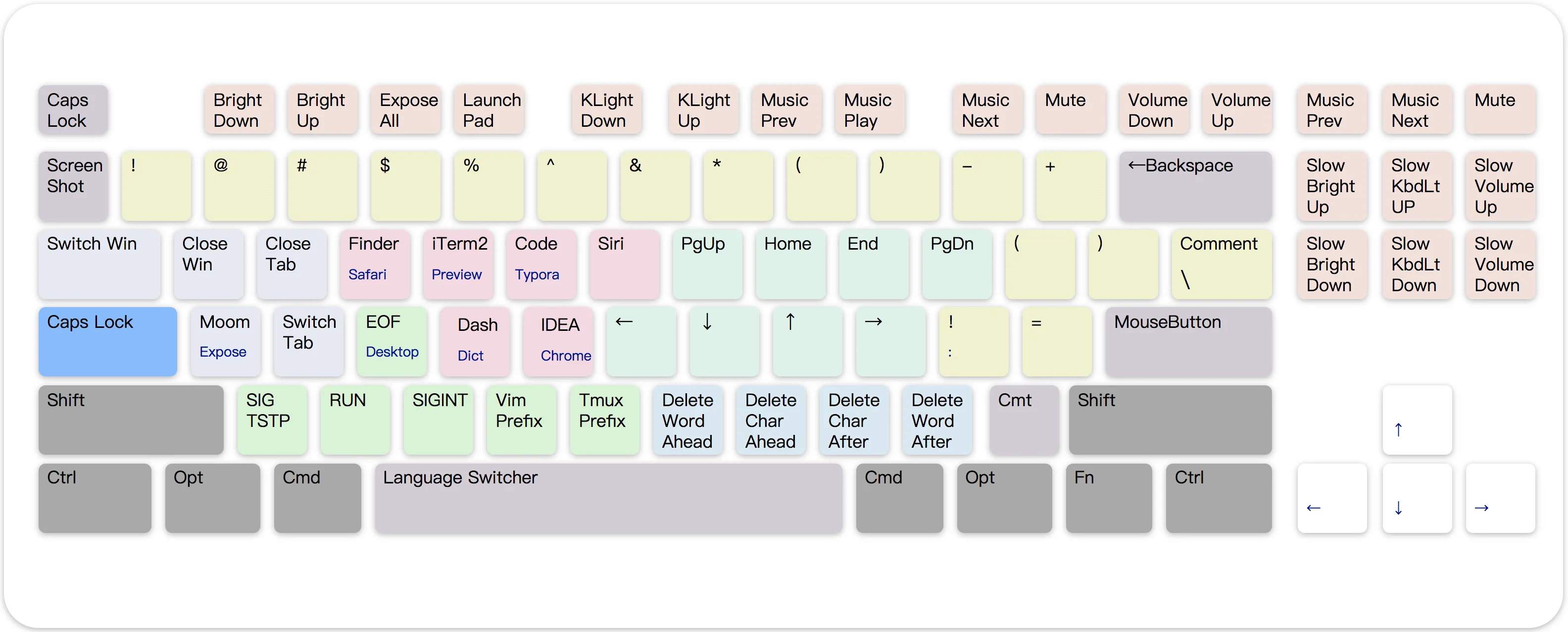
| Key | Result |
|---|---|
| Tap Caps Lock | Escape |
| Hold Caps Lock | Hyper (✱), the right-hand ⌃ ⌥ ⇧ ⌘ held together |
✱ Escape | Caps Lock. The README notes a bug: Caps Lock was hard to turn off again |
Hyper alone moves the cursor. Adding one left-hand modifier selects instead, moves the pointer, switches tabs and apps, or works with Spaces.
| Key | ✱ move | ✱ ⌘ select | ✱ ⌥ pointer | ✱ ⇧ switch | ✱ ⌃ Spaces |
|---|---|---|---|---|---|
| H | ← | ⇧← | Pointer left | Previous tab (⌃⇧Tab) | Space to the left (⌃←) |
| J | ↓ | ⇧↓ | Pointer down | Next app (⌘Tab) | Windows of the current app (⌃↓) |
| K | ↑ | ⇧↑ | Pointer up | Previous app (⇧⌘Tab) | Mission Control (⌃↑) |
| L | → | ⇧→ | Pointer right | Next tab (⌃Tab) | Space to the right (⌃→) |
| U | Page Up | ⇧Page Up | — | — | — |
| I | Home | ⇧Home | — | — | — |
| O | End | ⇧End | — | — | — |
| P | Page Down | ⇧Page Down | — | — | — |
| Key | Result |
|---|---|
✱ ← ↓ ↑ → | Move the pointer, like ✱ ⌥ H J K L |
✱ Return | Left click |
✱ ⌘ Return | Right click |
| Key | Sends | Deletes |
|---|---|---|
✱ N | ⌥⌫ | The word before the cursor |
✱ M | ⌫ | The character before the cursor |
✱ , | ⌦ | The character after the cursor |
✱ . | ⌥⌦ | The word after the cursor |
✱ ⌘ N, ✱ ⌘ M | ⌘⌫ | Back to the start of the line |
| Key | Sends | Result |
|---|---|---|
✱ Tab | ⌘Tab | Next app |
✱ ⌘ Tab | ⇧⌘Tab | Previous app |
✱ Q | ⌘Q | Quit the app |
✱ W | ⌘W | Close the tab |
✱ S | ⌃Tab | Next tab |
✱ ⌘ S | ⌃⇧Tab | Previous tab |
✱ A | ⌃⌥⇧⌘A | Left free for the window manager Moom |
✱ ⌘ A | ⌃↑ | Mission Control |
| Key | Sends | Used for |
|---|---|---|
✱ Z | ⌃Z | Suspend the job (SIGTSTP) |
✱ X | ⌃R | Run, in IDEs |
✱ C | ⌃C | Interrupt (SIGINT) |
✱ V | ⌃V | Vim prefix |
✱ B | ⌃B | The default tmux prefix |
✱ D | ⌃D | End of input (EOF) |
The README suggested replacing these with your own favourite apps.
| Key | ✱ | ✱ ⌘ |
|---|---|---|
| E | Safari | Finder |
| R | iTerm2 | Preview |
| T | Visual Studio Code | Typora |
| D | ⌃D (see above) | Dictionary |
| F | ⌃⌥⇧⌘F, left free for Alfred | Dash |
| G | IntelliJ IDEA | Google Chrome |
V2 expected F1 to F12 to act as standard function keys and used Hyper to get the printed functions back. On a MacBook Pro with a Touch Bar, the README suggested turning on Karabiner-Elements › Function Keys › "Use all F1, F2, etc. keys as standard function keys".
| Key | ✱ | Key | ✱ |
|---|---|---|---|
| F1 | Brightness down | F7 | Previous track |
| F2 | Brightness up | F8 | Play or pause |
| F3 | Mission Control | F9 | Next track |
| F4 | Launchpad | F10 | Mute |
| F5 | Keyboard backlight down | F11 | Volume down |
| F6 | Keyboard backlight up | F12 | Volume up |
Keys found on full-size keyboards:
| Key | ✱ |
|---|---|
| F13 (Print Screen) | Previous track |
| F14 (Scroll Lock) | Next track |
| F15 (Pause) | Mute |
| Insert, Delete | Brightness up, down, in fine steps |
| Home, End | Keyboard backlight up, down, in fine steps |
| Page Up, Page Down | Volume up, down, in fine steps |
| Key | ✱ types |
|---|---|
| 1 2 3 4 5 6 7 8 9 0 | ! @ # $ % ^ & * ( ) |
| - = | _ + |
| [ ] | ( ) |
| ; | ! |
| ' | = |
✱ ⌘ ; | : |
✱ ⌘ ' | = |
The last four rows make != and := quick to type.
| Key | Sends | Result |
|---|---|---|
✱ ` | ⌃⇧⌘4 | Screenshot of an area, to the clipboard |
✱ ⌘ ` | ⇧⌘4 | Screenshot of an area, to a file |
✱ Delete | ⌘⌫ | Move to Trash in Finder |
✱ / and ✱ \ | ⌘/ | Comment or uncomment, in many editors |
✱ Space | ⌃Space | Switch input source |
These are the steps from the V2 README, kept for the record.
capslock.json into
~/.config/karabiner/assets/complex_modifications/, which is what
make install in the mac_v2 folder does.~/.config/karabiner/assets/complex_modifications/.The README's own import link pointed at the repository's mac/ folder, which
now holds V3, and its second link pointed at the Karabiner-Elements gallery,
which also lists V3 today. The address above points at the V2 file.
All of V2 is in mac_v2/
in the repository.
| File | What it is |
|---|---|
capslock.json | The ten V2 rules, ready to import |
karabiner.json | A complete Karabiner-Elements configuration with the same rules. make all copies it over ~/.config/karabiner/karabiner.json and replaces your existing settings |
makefile | The install and all targets described above |
README.md | The original V2 documentation |
✱ ⌘ D runs Define instead of opening
Dictionary, and Spotlight replaces Launchpad.Mac V1 was the first Capslock edition for the Mac. It needed two tools. Seil
changed the key code that Caps Lock sends to 80, the code of F19. Karabiner then
read V1's private.xml, which turned that key into Hyper (✱) while held
and defined each group of shortcuts as a separate item to switch on in
Karabiner's preferences.
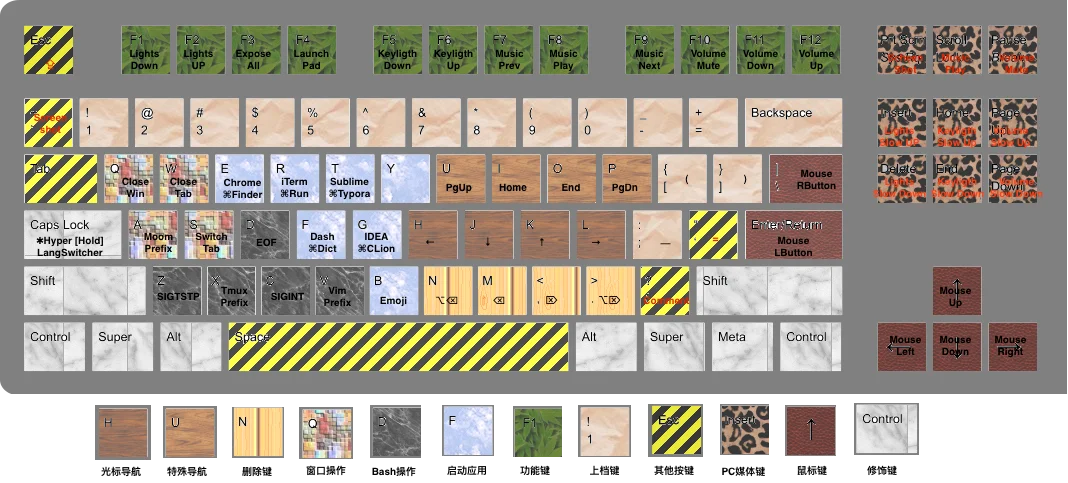
| Key | Result |
|---|---|
| Hold Caps Lock | Hyper (✱) |
| Tap Caps Lock | Escape, or ⌃Space to switch input source. These are two separate items that conflict, so turn on only one |
✱ Escape | Caps Lock |
✱ Space | Escape |
Hold Hyper to move the cursor; add the left ⌘ to select as you move.
| Key | ✱ move | ✱ ⌘ select |
|---|---|---|
| H | ← | ⇧← |
| J | ↓ | ⇧↓ |
| K | ↑ | ⇧↑ |
| L | → | ⇧→ |
| U | Page Up | ⇧Page Up |
| I | Home | ⇧Home |
| O | End | ⇧End |
| P | Page Down | ⇧Page Down |
| Key | Sends | Deletes |
|---|---|---|
✱ N | ⌥⌫ | The word before the cursor |
✱ M | ⌫ | The character before the cursor |
✱ , | ⌦ | The character after the cursor |
✱ . | ⌥⌦ | The word after the cursor |
| Key | Sends | Result |
|---|---|---|
✱ A | ⌃⌥⇧⌘A | Left free for the window manager Moom |
✱ ⌘ A | F11 | Show the desktop |
✱ Q | ⌘Q | Quit the app |
✱ Tab | ⌘Tab | Next app |
✱ ⌘ Tab | ⇧⌘Tab | Previous app |
✱ S | ⌃Tab | Next tab |
✱ ⌘ S | ⌃⇧Tab | Previous tab |
✱ W | ⌘W | Close the tab |
| Key | Sends | Used for |
|---|---|---|
✱ Z | ⌃Z | Suspend the job (SIGTSTP) |
✱ X | ⌃B | The default tmux prefix |
✱ C | ⌃C | Interrupt (SIGINT) |
✱ D | ⌃D | End of input (EOF) |
The README suggested replacing these with your own favourite apps.
| Key | ✱ | ✱ ⌘ |
|---|---|---|
| E | Google Chrome, or Safari through a separate item | Finder |
| R | iTerm | ⌃R, Run in IDEs |
| T | Typora | MWeb |
| F | Dash | Dictionary |
| G | IntelliJ IDEA | — |
| V | Visual Studio Code | — |
| Key | ✱ | Key | ✱ |
|---|---|---|---|
| F1 | Brightness down | F7 | Previous track |
| F2 | Brightness up | F8 | Play or pause |
| F3 | Mission Control | F9 | Next track |
| F4 | Launchpad | F10 | Mute |
| F5 | Keyboard backlight down | F11 | Volume down |
| F6 | Keyboard backlight up | F12 | Volume up |
Keys found on full-size keyboards:
| Key | ✱ |
|---|---|
| Insert, Delete | Brightness up, down, in fine steps |
| Home, End | Keyboard backlight in fine steps |
| Page Up, Page Down | Volume up, down, in fine steps |
| Scroll Lock | Mute |
| Pause | Play |
| Key | ✱ types |
|---|---|
| 1 2 3 4 5 6 7 8 9 0 | ! @ # $ % ^ & * ( ) |
| - = | _ + |
| [ ] | ( ) |
| ; | _ |
| ' | = |
| Key | Result |
|---|---|
✱ ← ↓ ↑ → | Move the pointer |
✱ Return | Left click |
✱ \ | Right click |
| Key | Sends | Result |
|---|---|---|
✱ / | ⌘/ | Comment or uncomment, in many editors |
✱ ` | ⌃⇧⌘4 | Screenshot of an area, to the clipboard |
✱ ⌘ ` | ⇧⌘4 | Screenshot of an area, to a file |
These are the steps from the V1 README, kept for the record.
80.private.xml. The setup script
in the mac_v1 folder copies it to
~/Library/Application Support/Karabiner/private.xml for you.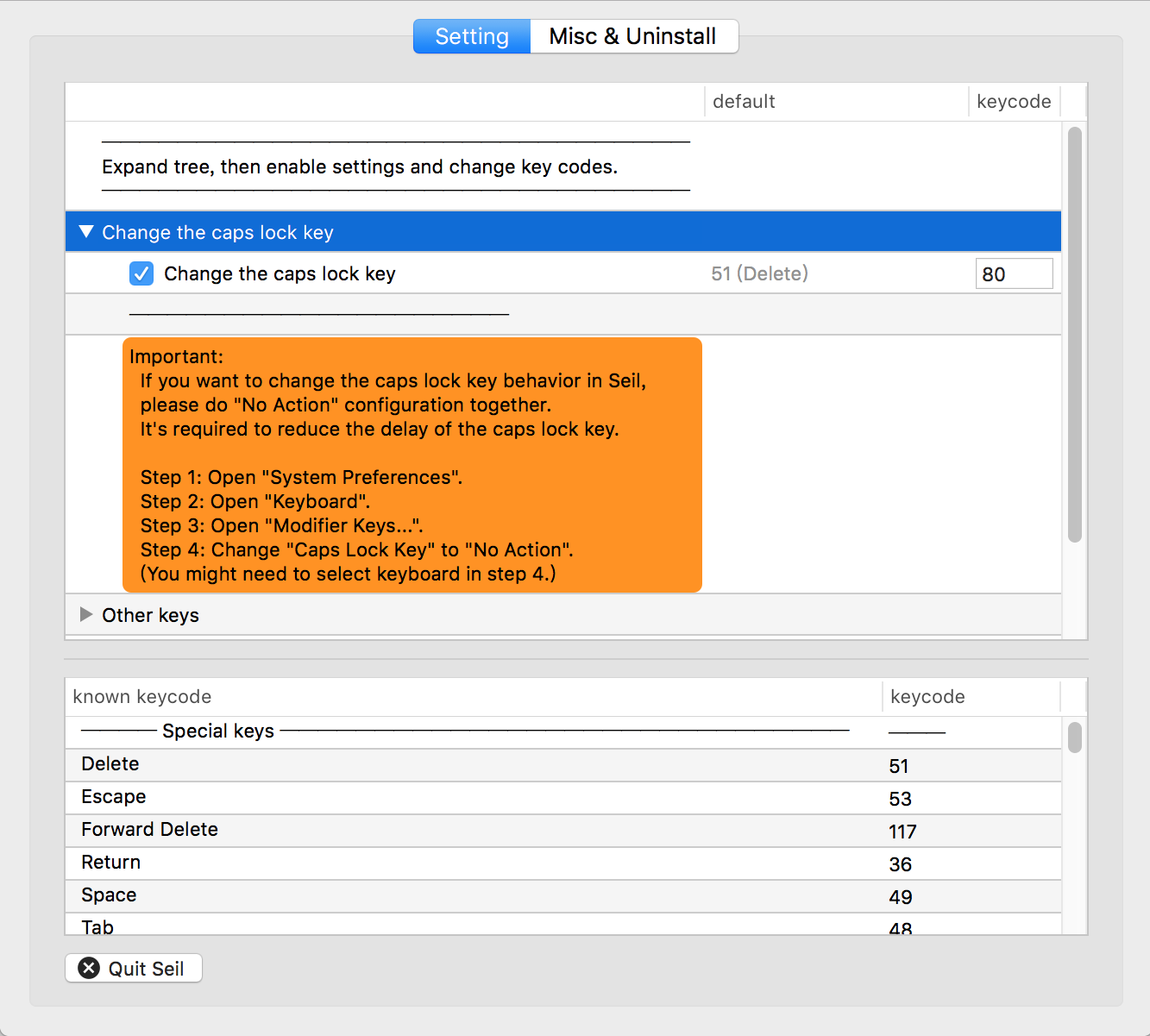
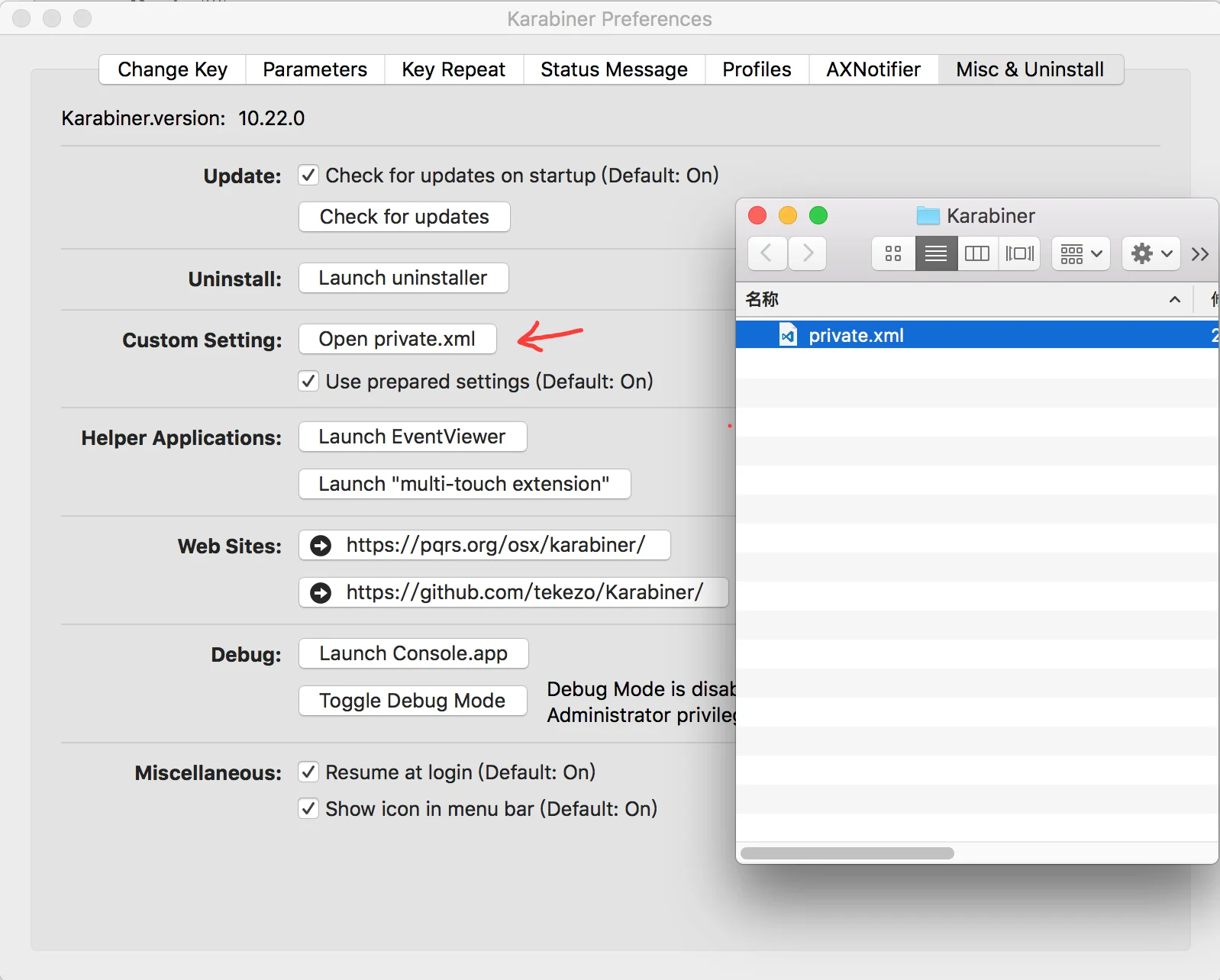
All of V1 is in mac_v1/
in the repository.
| File | What it is |
|---|---|
private.xml | The V1 configuration for the original Karabiner |
setup | A shell script that copies private.xml into Karabiner's folder |
README.md | The original V1 documentation |
The Windows version is an AutoHotkey script from 2013–2015. The Mac V2 README listed Windows XP, Vista, 7, 8 and 10 as its systems. Neither the script nor the prebuilt executable is tested on current Windows.
Capslock began on Windows in 2013, two years before the first Mac version. The script turns Caps Lock, which it calls the "useless key", into a function key like Ctrl and Alt by combining it with almost every other key on the keyboard. Caps Lock itself is kept off, and its old job moves to Caps Lock + `.
Some of its bindings differ from the Mac versions. The Mac V2 README notes this, and that the Windows version is no longer maintained.
The README summarises the script in one table. This version of it fills in the details from the script itself.
| Keys | What they do |
|---|---|
| Caps Lock | Escape, handy in Vim |
| Caps Lock + ` | Turn Caps Lock on or off |
| Caps Lock + H J K L | Vim-style arrow keys |
| Caps Lock + W B | One word right, one word left |
| Caps Lock + U I O P | Page Up, Home, End, Page Down |
| Caps Lock + N M , . | Delete: Ctrl+Backspace, Backspace, Delete, Ctrl+Delete |
| Caps Lock + Z X C V A Y | Ctrl+Z, X, C, V, A, Y: the usual Windows editing shortcuts |
| Caps Lock + arrow keys | Move the mouse pointer |
| Caps Lock + Enter | Mouse click |
| Caps Lock + F1 – F6 | Mute, volume down, volume up, play or pause, next track, stop |
| Caps Lock + Q S | Window and tab control |
| Caps Lock + ; ' [ ] | Convenience mappings |
| Caps Lock + D F E R T | Frequently used programs, chosen by the user |
| Caps Lock + 1 – 5 | Visual Studio shortcuts, chosen by the user |
| Caps Lock + 6 7 8 9 0 - = | The shifted symbols, as if Shift were held |
The README gives no installation steps. The repository holds the script in two forms:
CapsLock.ahk, runs with AutoHotkey. It uses AutoHotkey v1
syntax.CapsLock.exe, runs without AutoHotkey.CapsLock.exe is an old, unsigned, 32-bit prebuilt binary. It has not been
tested on current Windows. If you want to try the layout, read the source
and run it with AutoHotkey v1 instead.
All of the Windows version is in
win/ in the repository.
| File | What it is |
|---|---|
CapsLock.ahk | The AutoHotkey source |
CapsLock.exe | The prebuilt executable, 207,868 bytes |
README.md | The original summary |
The SHA-256 of CapsLock.exe in the repository is
e0d6a4d2de155860aed164281ed16f5871aaca95cccc6fe1d46db2b16004cb80.