Capslock Mac V1, the 2015–2017 private.xml that used Seil and the original Karabiner to turn Caps Lock into Hyper on OS X 10.10 and 10.11.
Archived, not maintained
Mac V1 ran on the original Karabiner together with Seil, on OS X 10.10
Yosemite and 10.11 El Capitan. The original Karabiner does not run on macOS
10.12 Sierra or later, so V1 cannot run on any current Mac. It was replaced by
Mac V2, and the maintained edition today is
Mac V3.
Mac V1 was the first Capslock edition for the Mac. It needed two tools. Seil
changed the key code that Caps Lock sends to 80, the code of F19. Karabiner then
read V1's private.xml, which turned that key into Hyper (✱) while held
and defined each group of shortcuts as a separate item to switch on in
Karabiner's preferences.
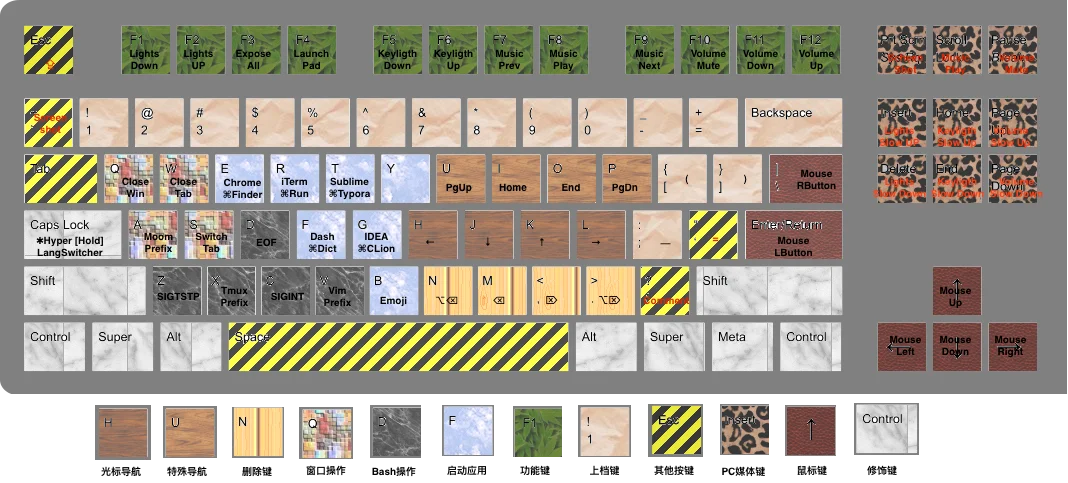
The layout diagram from the V1 README. Its colour legend is in Chinese, and some app keys in it differ from the lists on this page.
Caps Lock
Key
Result
Hold Caps Lock
Hyper (✱)
Tap Caps Lock
Escape, or ⌃Space to switch input source. These are two separate items that conflict, so turn on only one
✱ Escape
Caps Lock
✱ Space
Escape
Navigation
Hold Hyper to move the cursor; add the left ⌘ to select as you move.
The README suggested replacing these with your own favourite apps.
Key
✱
✱ ⌘
E
Google Chrome, or Safari through a separate item
Finder
R
iTerm
⌃R, Run in IDEs
T
Typora
MWeb
F
Dash
Dictionary
G
IntelliJ IDEA
—
V
Visual Studio Code
—
Function keys
Key
✱
Key
✱
F1
Brightness down
F7
Previous track
F2
Brightness up
F8
Play or pause
F3
Mission Control
F9
Next track
F4
Launchpad
F10
Mute
F5
Keyboard backlight down
F11
Volume down
F6
Keyboard backlight up
F12
Volume up
Keys found on full-size keyboards:
Key
✱
Insert, Delete
Brightness up, down, in fine steps
Home, End
Keyboard backlight in fine steps
Page Up, Page Down
Volume up, down, in fine steps
Scroll Lock
Mute
Pause
Play
Shifted symbols
Key
✱ types
1 2 3 4 5 6 7 8 9 0
! @ # $ % ^ & * ( )
- =
_ +
[ ]
( )
;
_
'
=
Mouse
Key
Result
✱ ← ↓ ↑ →
Move the pointer
✱ Return
Left click
✱ \
Right click
Other keys
Key
Sends
Result
✱ /
⌘/
Comment or uncomment, in many editors
✱ `
⌃⇧⌘4
Screenshot of an area, to the clipboard
✱ ⌘ `
⇧⌘4
Screenshot of an area, to a file
How it was installed
These are the steps from the V1 README, kept for the record.
Download and install Seil.
Download and install Karabiner.
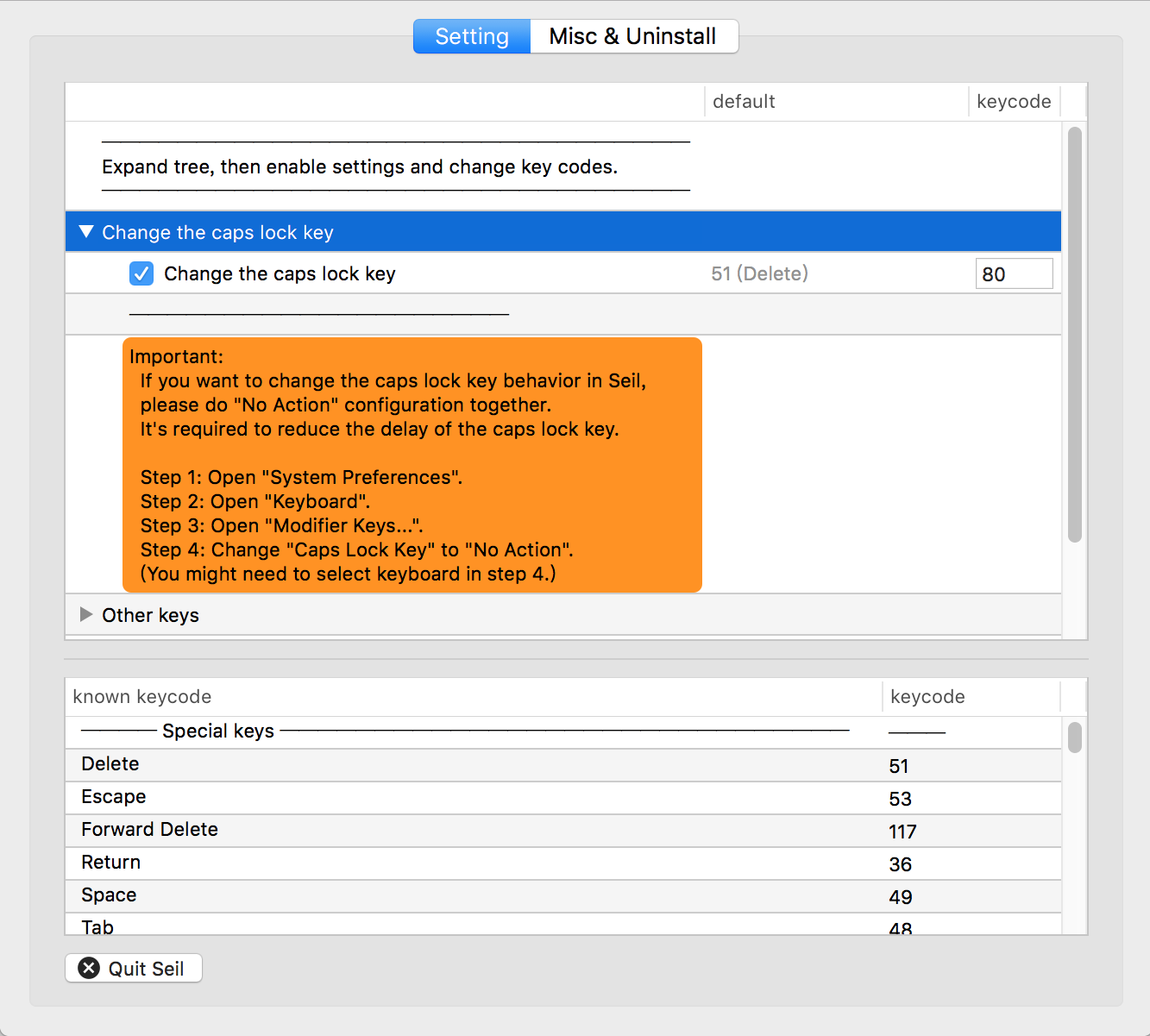
In Seil, turn on Change the caps lock key and set its key code to 80.
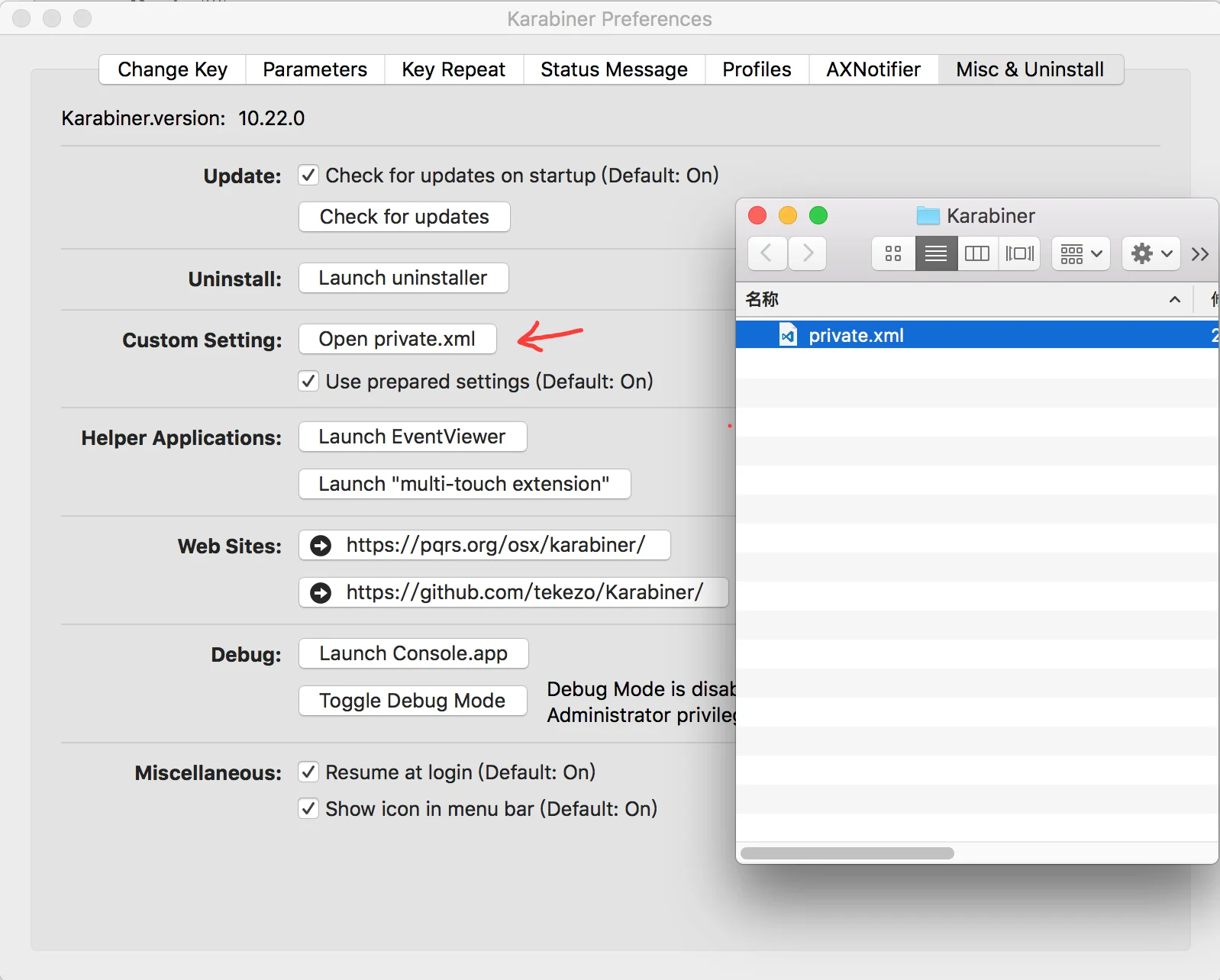
In Karabiner, open the Misc & Uninstall tab and click Open
private.xml. Replace that file with V1's private.xml. The setup script
in the mac_v1 folder copies it to
~/Library/Application Support/Karabiner/private.xml for you.
Return to the Change Key tab, click Reload XML, and enable the items
you want.
Step 3: Caps Lock set to key code 80 in Seil.Step 4: Open private.xml in Karabiner reveals the file to replace.
Tools. V1 needed Seil and the original Karabiner, configured in XML.
Karabiner-Elements replaced the original Karabiner for macOS Sierra and
later; V2 and V3 are JSON rules for it and do not need Seil.
Tapping Caps Lock. V1 let you choose between Escape and switching input
source. V3 sends Escape on a tap.